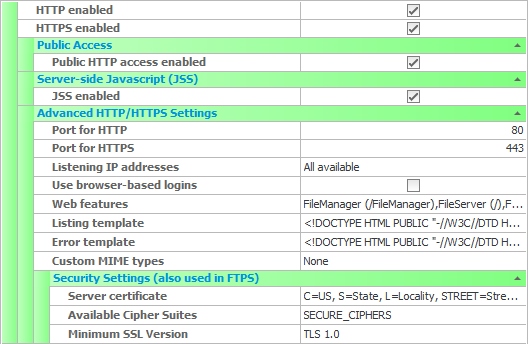
HTTP/HTTPS is supported in the Professional and Enterprise Editions.
The various HTTP/HTTPS settings that are available to configure CompleteFTP sites are described below. Note that settings changes must be saved via the Apply Changes button, otherwise they will be lost.
Please note that HTTP and HTTPS should not be enabled until any other HTTP/HTTPS services on the server machine are shut down, e.g. IIS and Apache. Other products such as Skype also use the HTTP and HTTPS default ports of 80 and 443. If in doubt, use netstat to check what ports are in use. Note that these products can be run simultaneously, but must be configured so their port numbers do not clash. Both Apache and CompleteFTP can be set up with HTTP/S port numbers that differ from the default ports.
There are additional HTTP settings in Limits & Timeouts.
For HTTPS security settings, see the FTP/FTPS Security Settings (as they are shared).
| Setting | Description |
| HTTP Enabled | If checked, the HTTP protocol is enabled. If not checked, HTTP will not be supported by the server. If enabling, ensure that other HTTP servers are not running on the server machine. |
| HTTPS Enabled | If checked, the HTTPS protocol is enabled. If not checked, HTTPS will not be supported by the server. If enabling, ensure that other HTTPS servers are not running on the server machine. |
| Public HTTP access enabled | If checked, unauthenticated users will be able to access any file in the public folder. Unauthenticated users are represented by the user called 'anonymous'. By default the home-folder of this user is /Public, so this is the folder that will be publicly accessible if this option is enabled. |
| Server-side Javascript (JSS) enabled | Enable JSS for this site. Read more about JSS here. |
| Port for HTTP | Port that is used for HTTP. The standard port number for HTTP is port 80. |
| Port for HTTPS | Port that is used for HTTPS. The standard port number for HTTP is port 443. |
| Listening IP addresses | Lists the IP addresses to listen on for this protocol. All network interfaces can be selected, or individual interfaces selected. |
| Server certificate |
Displays the dialog for controlling the server certificate. A server certificate must be set if FTPS or HTTPS is enabled.
The dialog displays the current certificate's properties, and enables a new self-signed certificate to be generated.
Also, a certificate signing request (CSR) can be created to send to a certificate authority (CA) to obtain a CA certficate.
This property is shared with the FTP/FTPS settings. |
| Use browser-based logins | If this option is enabled then HTTP logins to CompleteFTP will be handled by browser-based authentication (usually via basic authentication) rather than by the CompleteFTP login page. Note that basic authentication is not secure unless performed over SSL (i.e. using HTTPS). |
| Web features | Displays the configured web features. Clicking on the ellipsis (...) will bring up a dialogue box listing each web feature, and showing the configured URL path used by clients to access the application, and whether or not it is enabled. The URL path can be modified here, and the enabled or disabled status. By default, the Professional and Enterprise Editions support the FileManager feature that permits browsers to manage the remote file system. The FileServer application is responsible for serving files via HTTP. If it's disabled, individual files will be unavailable HTTP. The FileSharing feature controls access to shared files via HTTP. The Login feature performs HTTP user logins and the CustomCommand feature controls the Custom Command Script feature. |
| Listing template | Controls the format in which directory listings are displayed to the user. Directories may be listed by users by entering a URL specifying the path of a directory. The listing is rendered using HTML containing macros, such as %FileName%. Clicking on the ellipsis (...) will bring up a dialog permitting the user to enter their own template. See How to format HTML listings for more information. |
| Error template | Controls the format in which HTTP errors are displayed to the user. The default template uses Javascript to redirect the user to their home folder for 403 errors. Clicking on the ellipsis (...) will bring up a dialog permitting the user to enter their own template. |
| Custom MIME types | A MIME type, or Internet media type, is a two part identifier for file formats. In its most basic form, it defines the type and the subtype for a file extension. For example, HTML files are defined as "text/html". The webserver sends the MIME type to the browser as part of the file being downloaded, and the browser uses the MIME type to decide how best to display the file. An HTML file, with a MIME type of "text/html", will be displayed as a web page. Most common MIME types are included by default in CompleteFTP. Custom MIME types can be added, either as additional file types or to override default MIME types. |