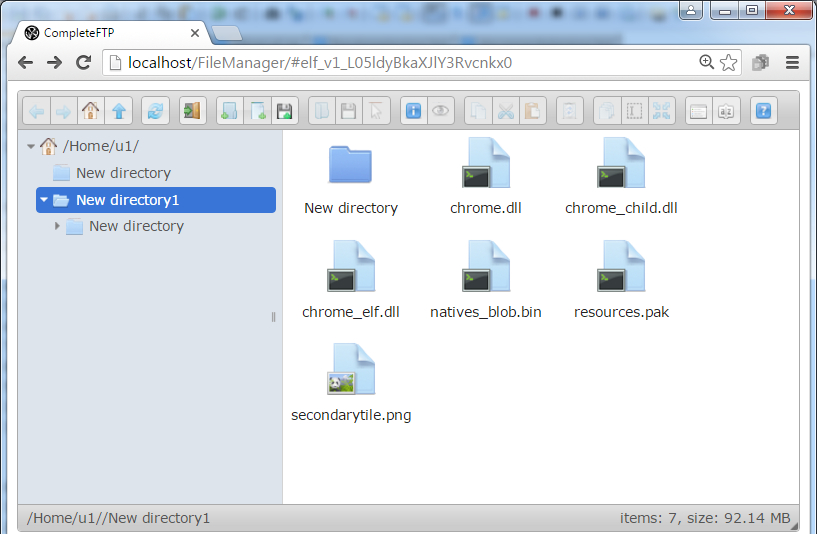
The Professional and Enterprise Editions of CompleteFTP support HTTP and HTTPS. Since version 7.2, they both support the FileManager web application - a Javascript/HTML client that can be used in any browser to manage the remote file system. This is an extremely powerful GUI web client that can perform all the normal operations expected of a file manager application, including uploading and downloading files. An example is shown at the bottom of this page.
To enable the FileManager web-app, open the CompleteFTP manager and go to the Sites tab. Go down to the HTTP/HTTPS section. Ensure that HTTP (and/or HTTPS) is enabled, and go to the Advanced HTTP Settings. Select the Web-apps ellipsis (...). More details can be found here.
By default, the FileManager (if enabled) is available at the /FileManager URL on the server, but users are also redirected there when they access their home directories. If users have not authenticated, they will be prompted to do so by the standard browser authentication dialog. Once authenticated, the FileManager will be displayed. It functions like most file managers. There's a right hand click menu on both folders and files that can be used to perform various actions. Files can also be dragged and dropped onto the FileManager and they will be uploaded.
The FileManager is based on the elFinder file manager, and is written entirely in Javascript. Accordingly, it can be modified (at your own risk!). The code can be found at C:\ProgramData\Enterprise Distributed Technologies\Complete FTP\FileManager or the equivalent (depending on your OS). The elFinder website contains documentation, including client configuration options. Different languages are also supported.