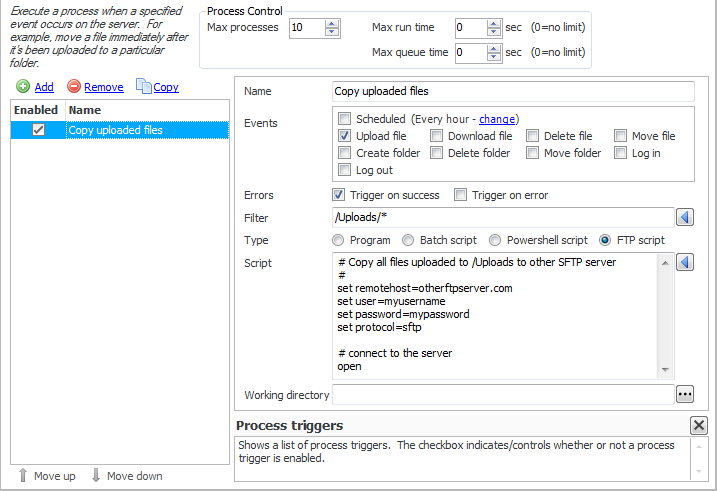
CompleteFTP supports highly customizable process execution triggers. This means that when an event such as a file upload occurs, a process can be launched (e.g to move a file after it has been uploaded).
In the Process Execution tab, the maximum number of concurrent processes can be set (default 10), together with the maximum run time and maximum time a process is queued for before it runs. The latter two setting have a default of 0 which means no limit.
The list of current process triggers is displayed in the Process Execution tab. Use Remove to delete triggers, and Add to create a new trigger.
When adding, enter an appropriate name for the trigger, and select what Events the trigger is applicable for. The various fields are described below.
Processes may be triggered by any of the types of events listed below. By default events are only triggered when an operation, such as a file upload, succeeds, but they may also be triggered on failure. This is determined by the checkboxes labelled 'Trigger on success' and 'Trigger on error'.
The folder- or file-path filter should be entered. This filter may be used to select the files/folders which the notifications should be sent for. For example, if notifications should only be sent for files with the extension, '.dat', then the filter should be set to '*.dat'. By default Windows-style wildcards are used for matching.
Note that the full path is used for matching; not just the file-name. So if notifications should be sent for files named 'test.dat' in any directory, then the filter should be set to '*/test.dat'.
Regular expressions (.NET-style) may also be used. To use these the filter should be prefixed by 'regex:'. Information on .NET regular expressions may be found on the Microsoft(tm) website. Note that multiple filters may be defined using regular expressions using the syntax, regex:^(/Folder1/.*|/Folder2/.*), which would match anything underneath the folders, /Folder1 and /Folder2. If you want to match anything not underneath these folders you can do that using the regular expression, regex:^(?!/Folder1/.*|/Folder2/.*).
Three types of process triggers can be created. They can either be a normal program (an executable file such as cmd.exe), a DOS batch script or a Powershell script. The settings for these triggers are described below:
Only applicable for Programs. This is the path to the executable that will be launched. Note that a program with a GUI should NOT be specified.
Enter the arguments to be supplied to the program. Various macros can be used here.
Enter the batch script, Powershell or FTP script to be run. Various macros can be inserted into the script at execute time.
Select the working directory that the program or script should be running in when it is executed.
For both the examples below, if they are to apply to all uploaded files, use "*" as the filter.
Otherwise use a specific directory, e.g. for a certain user, /home/username/*. Note that in the
scripts the Windows paths must be used rather than the virtual filesystem paths.
To move all uploaded files to a single directory after upload (as a batch file):
move "%WindowsPath%" D:\destination
To change files to readonly after uploading:
attrib +r "%WindowsPath%"